
How to channel surf your Plex, Jellyfin, or Emby server
Coax turns your Plex, Jellyfin, or Emby library into cable channels with a program guide. There is nothing to set up: connect to your server, pick a Lineup, and press play. Everything else on this page is optional, for when you want more.
You need Coax from the App Store and an account on a Plex, Jellyfin, or Emby server.
Getting started
- Connect to a server Sign In to Plex, and pick a server if you have access to more than one. Sign In to Jellyfin. Sign In to Emby.
- Pick a Lineup Coax has already made one for each movie and TV library on your server.
- Press play Tap Play. The guide opens right away and fills in as Coax builds the channels. Tap Play, then choose Single Pane, Multi-Window, or TV. The guide opens right away and fills in as Coax builds the channels.
That's it. When you want more, it's all here:
Set up your Plex server
You need access to a Plex server with at least one movie or TV library on it. Two settings make playback better:
- Settings › Transcoder: turn on Hardware transcoding (Plex Pass) and Enable HEVC video encoding.
- Settings › Network: set Terminate Sessions Paused for Longer Than to 0.
- Dashboard › Playback › Transcoding: turn on Hardware acceleration and Allow encoding in HEVC format.
- Dashboard › Plugins › Catalog: install the Coax plugin. Optional: it unlocks Director and Actors channels and makes channel setup faster.
- Settings › Transcoding: turn on Hardware encoding and HEVC encoding.
To watch away from home, turn on the server's remote access. You can sign in to several servers at once, of any kind, and each gets its own Lineups.
Not everyone's Plex server is the same. Check the suggested settings to see if yours needs a change for a great out-of-the-box experience with Coax.
Download the app
Install Coax from the App Store onto whatever devices you want to watch on. All your Lineups and Schedules will sync over iCloud.
Coax finds the fastest route to your server on its own. If you have Tailscale or similar set up, you can use a Custom connection to always route through it. See how connections work.
Watch
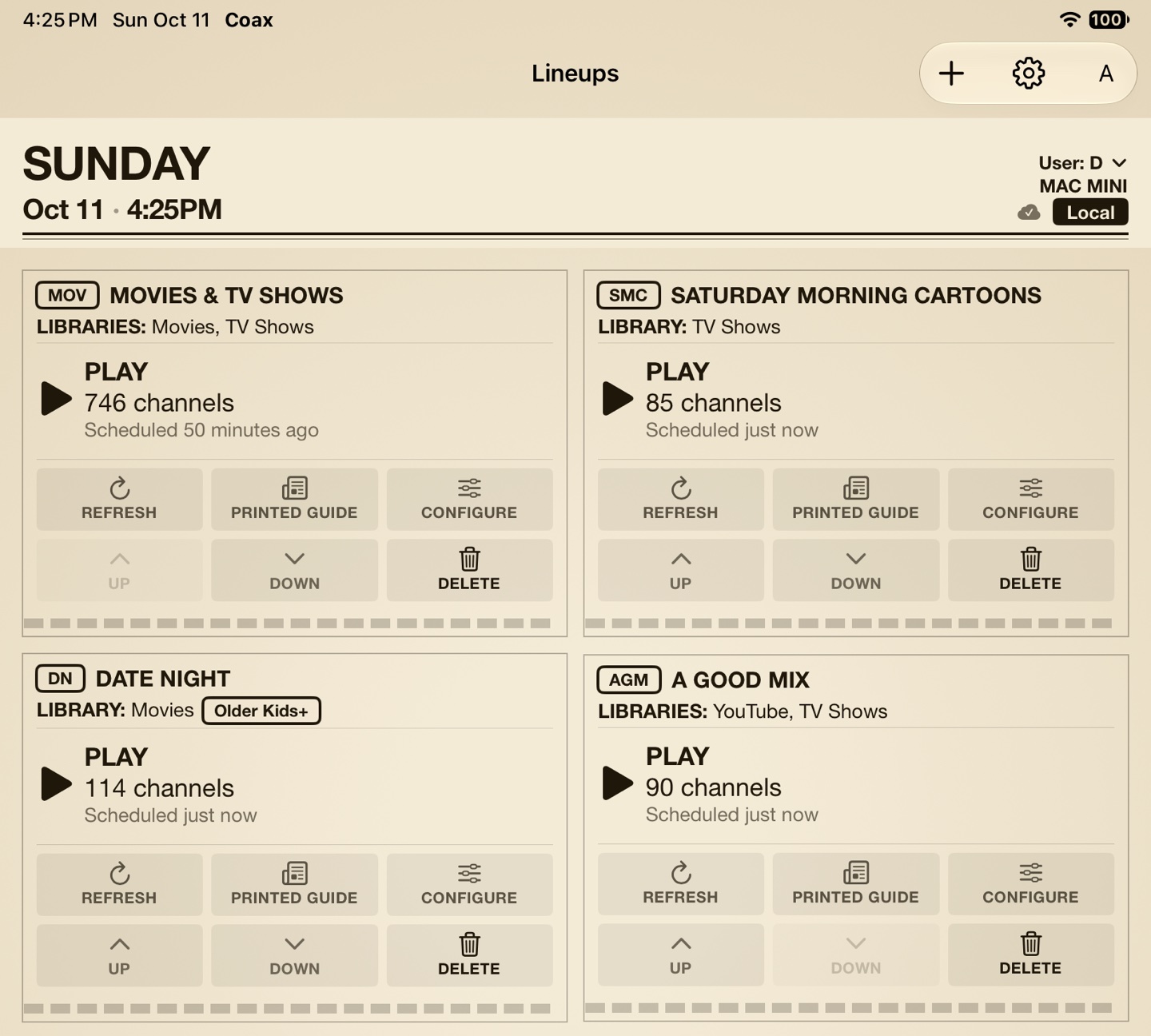
When you first run Coax, it will create one Lineup per library (Movies, TV Shows, Music Videos, whatever you already have on your server). Feel free to delete any Lineups you don't want. You can make a new one in no time.
Tap Play on a Lineup. The guide opens right away and the channels fill in as Coax builds them. Start watching as soon as the first ones appear.
The guide has channels and their numbers down the side, time across the top, and the airing block highlighted. A block shows the title, the episode or year, and how far along it is. Tap a block to tune. You join the program in progress, like broadcast. The banner names the channel and the program, then fades.
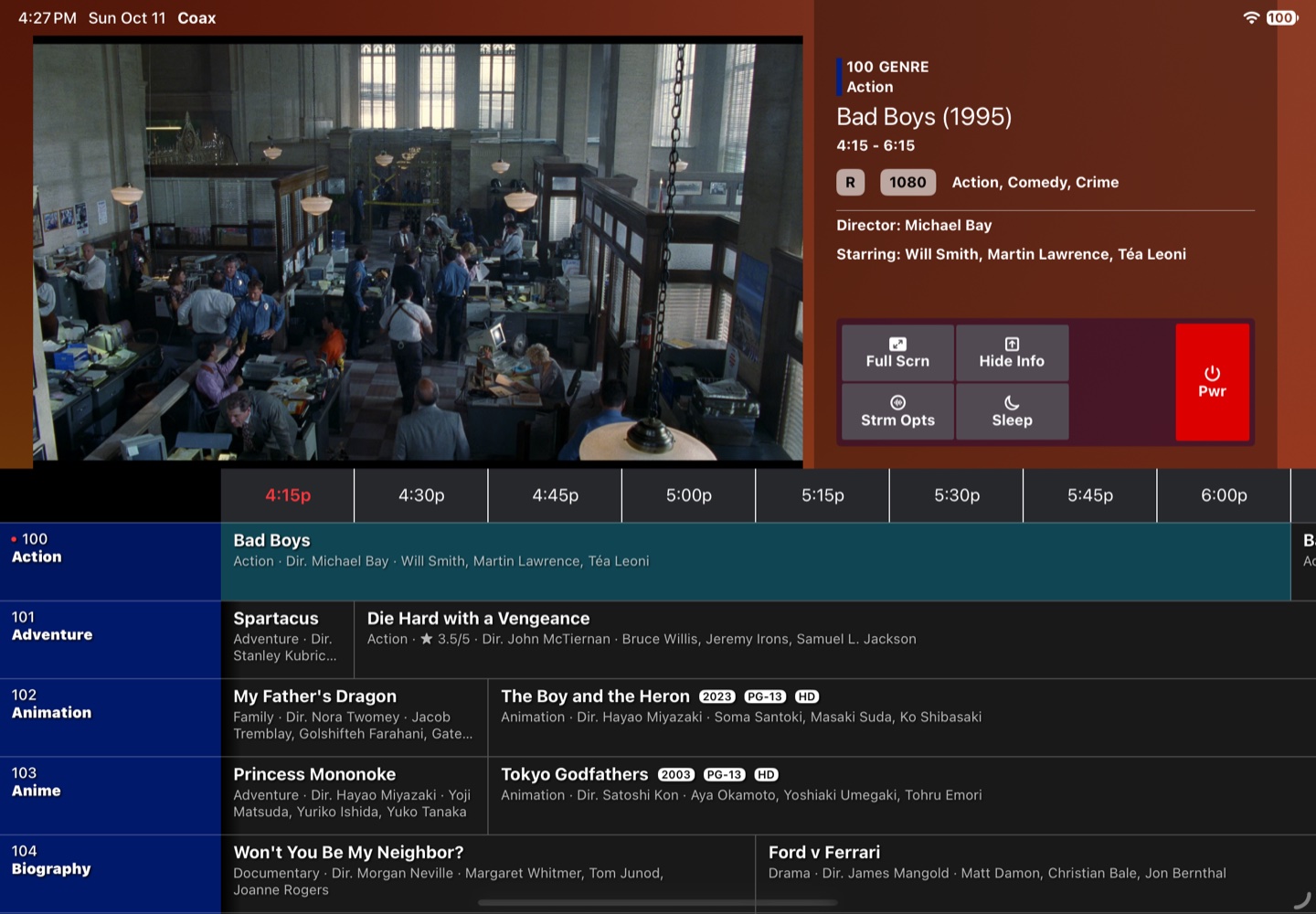
The guide opens with the program's details in a pane beside the picture. Hide Info collapses the pane and gives the picture its place; Show Info brings it back. The button is in the guide's controls on iPhone, iPad, and Vision Pro (in Single Pane), in the control column on Apple TV, and in the Control Panel on the Mac. The button is in the guide's controls. On the Mac, the button is in the Control Panel. The button is in the guide's control column. In Single Pane, the button is in the guide's controls.
In full screen, surf with channel up and down (swipe on iPhone, iPad, and Vision Pro, arrow keys on Mac, the remote on Apple TV), or type a channel number on the Mac's keyboard. In full screen, swipe up and down to change channels. In full screen, the up and down arrow keys change channels, and typing a channel number tunes straight to it. In full screen, press up and down on the remote to change channels. In the Modern and Sky themes, full screen also names the channels above and below yours and what is on them. Tap or click one to tune to it. On Apple TV they are there to read, and on Vision Pro they show in Single Pane only. In the Modern and Sky themes, full screen also names the channels above and below yours and what is on them. Tap one to tune to it. In the Modern and Sky themes, the video window also names the channels above and below yours and what is on them. Click one to tune to it. In the Modern and Sky themes, full screen also names the channels above and below yours and what is on them. In the Modern and Sky themes, full screen in Single Pane also names the channels above and below yours and what is on them. Tap one to tune to it.
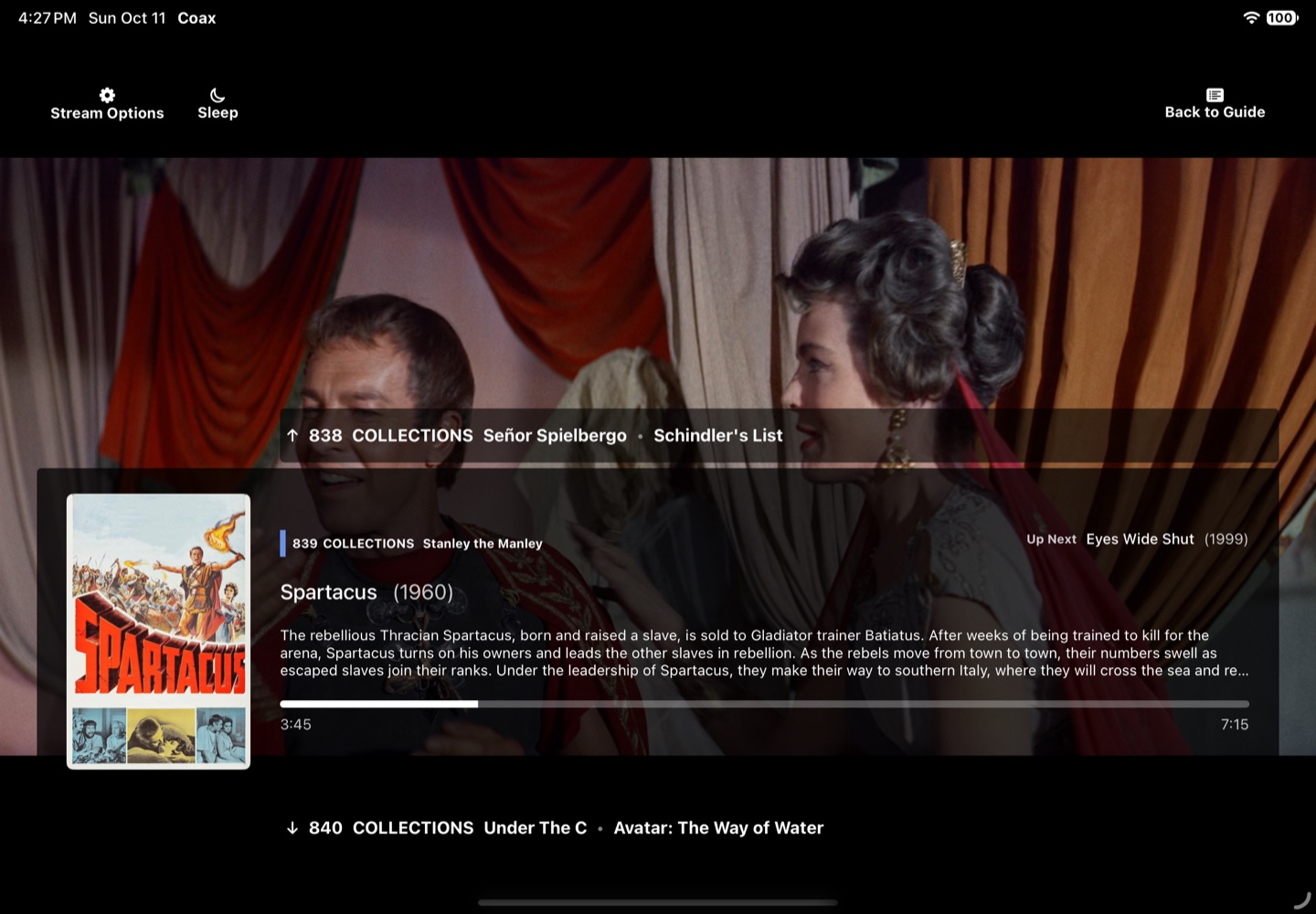
Pausing. Coax has no pause button; a channel plays whether or not you are watching. Your device's own controls (headphones, Lock Screen, media keys, the Apple TV remote) pause and resume it. The Lock Screen and Control Center pause and resume it. The play/pause button on the remote pauses and resumes it. On Vision Pro, Control Center can't pause it either. After five minutes paused, Coax exits the guide and returns you to the Lineups.
Power returns you to Lineups. It is in the guide's controls on iPhone, iPad, Apple TV, and Vision Pro, and under Watch › Power on the Mac. Pwr in the guide's controls returns you to Lineups. Watch › Power, or Power in the Control Panel, returns you to Lineups. Power, at the foot of the guide's control column, returns you to Lineups. Pwr in the guide's controls returns you to Lineups. In Multi-Window, it is in the Info panel.
Video quality, audio, and subtitles are in Stream Options: the gear on iPhone and iPad, Watch › Stream Options on the Mac, press right on the Apple TV remote. Video quality, audio, and subtitles are in Stream Options: Strm Opts in the guide's controls. Video quality, audio, and subtitles are in Watch › Stream Options. Video quality, audio, and subtitles are in Stream Options: press right on the remote in full screen, or choose Options in the guide's control column. Video quality, audio, and subtitles are in Stream Options: Strm Opts in the guide's controls, or in the Info panel in Multi-Window. Full quality is the right setting for most people. Details in Troubleshooting.
More about the guide screen, from the sleep timer to what each platform adds, is in Using the Cable Guide.
Make your own Lineups
A Lineup is one cable guide: its libraries, the kinds of channels it builds, and a few rules about what is allowed on. Coax makes a plain one per library. Make more for different moods; each keeps its own schedule.
The + on the Lineups screen (New Lineup on the Mac) makes a Lineup and opens its Configure: name it and pick its libraries. A changed Lineup rebuilds the next time you play it.
Printed Guide on a Lineup opens a listing like a newspaper's TV page: a page for each kind of channel, then Now, Soon, and Later pages for the whole Lineup, a few hours each. Check it for what is on tonight and pick your movie ahead of time.
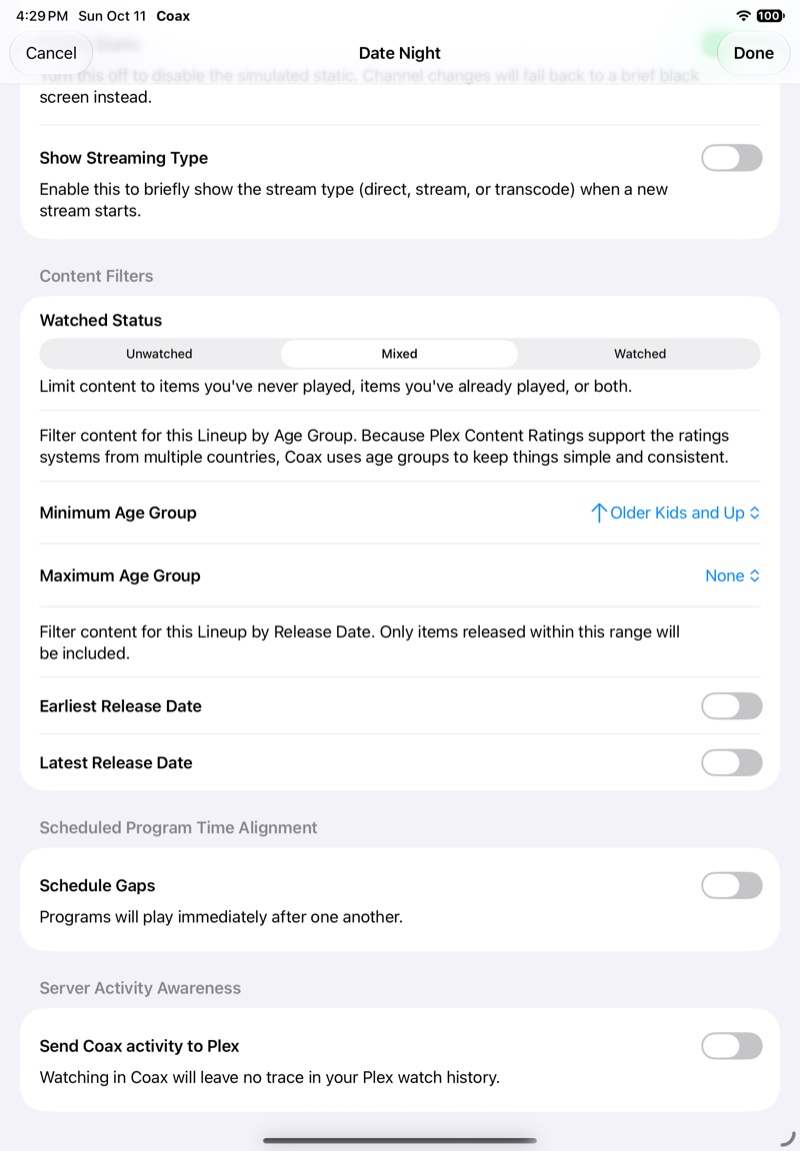
A new Lineup starts with sensible defaults: every program starts on a quarter hour, an Up Next countdown fills the time between programs, and the Now Playing channel shows what is on your other channels. Change any of it in Configure:
- Libraries. One or several. A Lineup can combine libraries of any kind: movies, TV shows, music videos, and the rest.
- Minimum Age Group and Maximum Age Group. A floor and a ceiling, each Younger Kids, Older Kids, or Teens (the floor is in case you don't want Paw Patrol mixed in with your Game of Thrones). See Parental Controls.
- Earliest Release Date and Latest Release Date. Set either or both to restrict your Lineup by release date.
- Watched Status. Unwatched, Mixed, or Watched.
- Channels Manager. Which kinds of channels the Lineup builds and how many. See The Channels Manager.
- Schedule Gaps and Gap Content. When programs start and what plays in between. See Schedule gaps and gap content.
- Open this Lineup by default. This Lineup loads as soon as you open Coax. Only one Lineup can have it on at a time.
- Send Coax activity to Plex. Off by default. Turn it on and Coax tells the server what you are watching as you watch it, so your place is remembered and finished items are marked watched. Off, watching in Coax leaves no trace in the server's watch history. More in Sending watch history.
Some suggested starter Lineups
| Lineup | Settings |
|---|---|
| Saturday Morning | TV Shows. Maximum Age Group Younger Kids and Below. TV Marathon Mode Partial, for three cartoons in a row. Turn off every row in the Channels Manager except Genre, and every genre except Animation. Channel Amount Custom, with 30 Animation channels set under Edit on the Genre row. |
| The Eighties | Movies and TV Shows. Release dates 1980 to 1989. Combined Channels on. Channel Amount A lot. |
| Background TV | TV Shows. Watched Status Watched. TV Marathon Mode Off. Channel Amount Some. |
| Family Movie Night | Movies. Maximum Age Group Older Kids and Below. Schedule Gaps on, with Trailers in the gaps. |
Weight a Lineup with Custom
With Channel Amount set to Custom, you choose how many channels each thing gets. Give something more channels and it is on more often, so a Lineup leans however you want it to.
If, for example, you like to fall asleep to Bob's Burgers, you could make a Nighty-Night Lineup with 10 Marathon channels worth of B's Bs, plus a few NBC Comedies like 30 Rock or Parks & Rec. Just open it up, press the Sleep button to start the countdown, and doze off.
- In the Lineup's Configure, set Channel Amount to Custom. A Lineup holds up to 800 channels in all.
- For a show, use Choose on the Marathons row, turn the show on, and set its count. Each copy starts at a different point in the series, so they show different episodes at the same time.
- For a genre, a decade, a collection, or a playlist, use Edit on its row and set the count beside each one you keep.
- Actors, Director, Studio, Recents, and Chaos take one number for the whole row, in the Channels Manager itself: how many of those channels Coax makes, not which ones.
Next
- Using the Cable Guide: the guide screen, full screen, the sleep timer, and what each platform adds.
- Creating Custom Channels: the Channels Manager, collections and playlists, and marathons.
- Customizing the Cable Guide: the theme, schedule gaps, static, channel order, and refreshing.
- Coax, ErsatzTV, and Tunarr: how Coax compares, and how to keep the channels you already built in one of them.
- Troubleshooting: fixes, the suggested server settings, connections, codecs, and audio and subtitle tracks.
- Parental Controls: age limits, hidden Lineups, and locking the controls.