
Customizing the Cable Guide
Beyond which channels get built, a handful of settings change how your guide looks and behaves. The theme is one setting for the whole app; the rest live on the Lineup, so each Lineup can have its own.
Change the theme
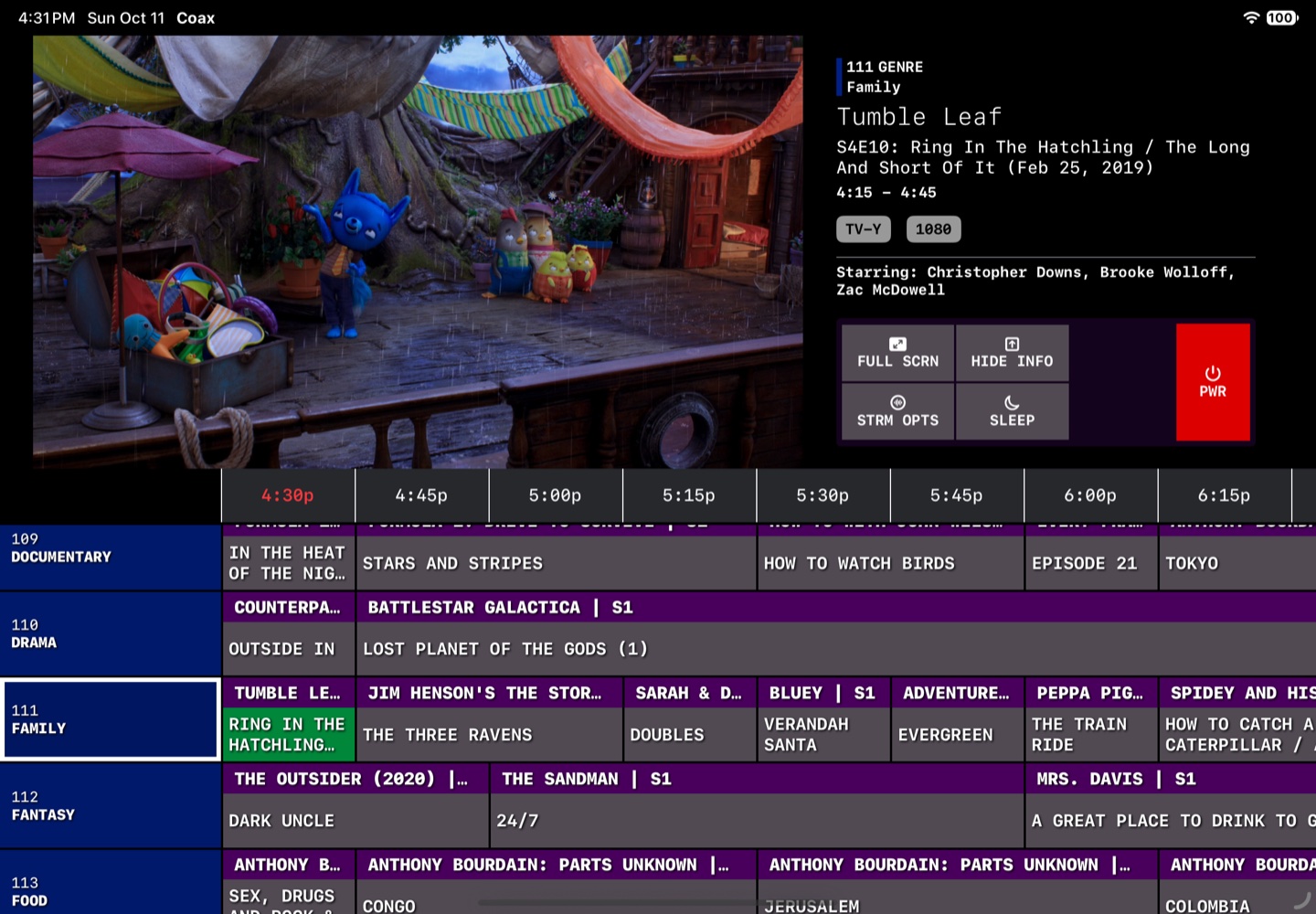
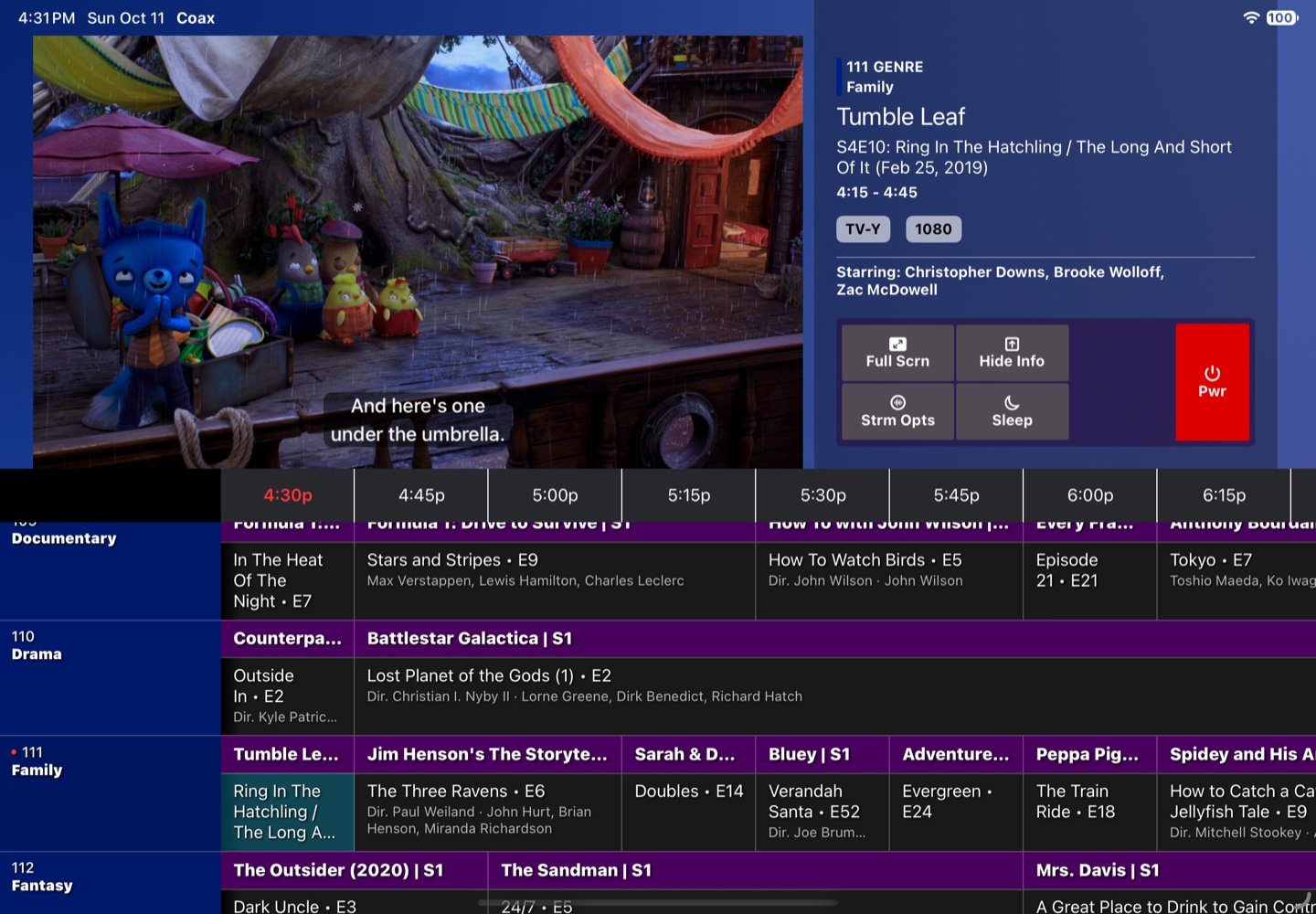
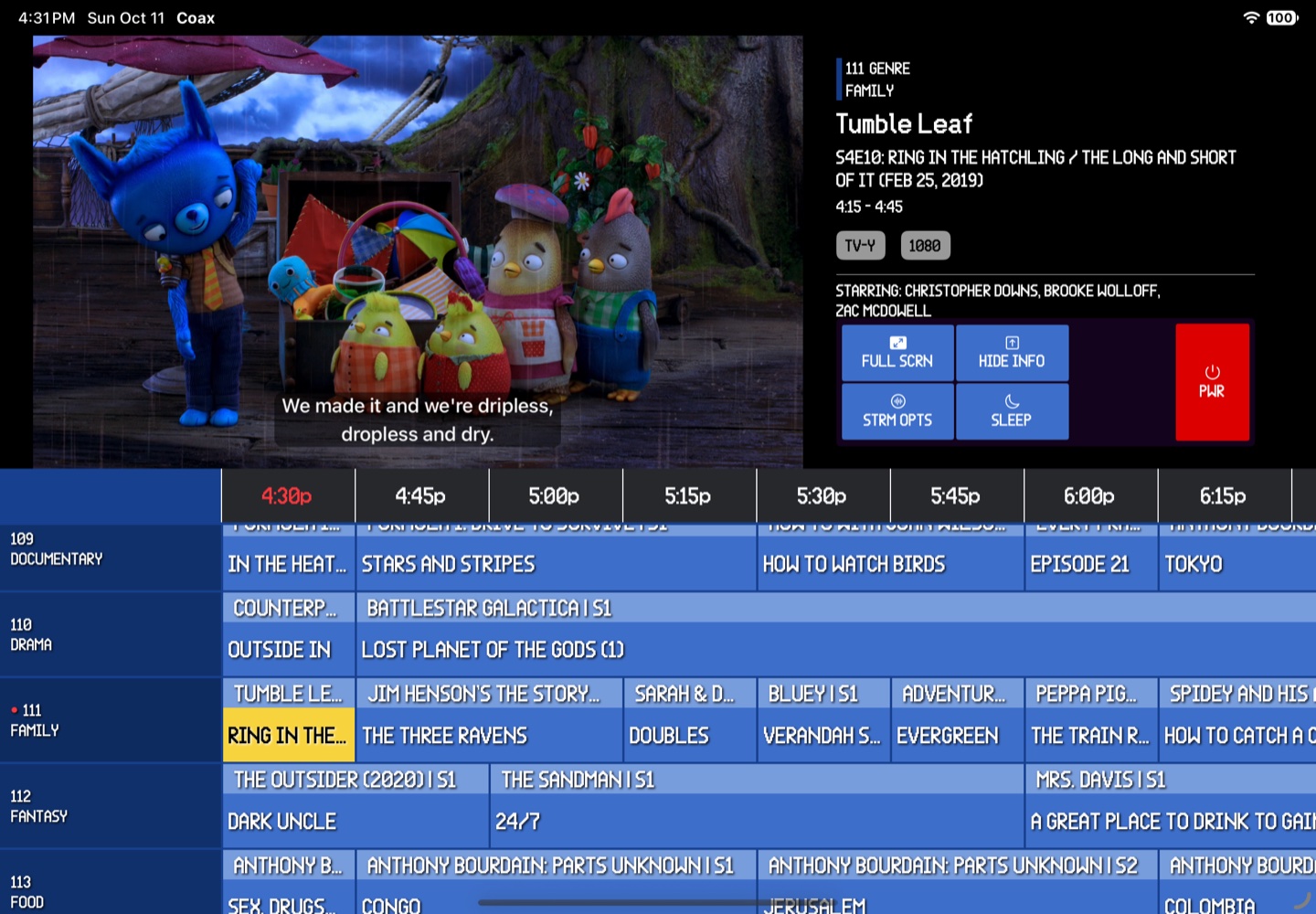
Coax has three themes: Retro, Modern, and Sky. Retro sets the guide in monospaced capitals with the tuned program in green, Modern uses the system font with it in teal, and Sky turns the grid blue, in VHS-style capitals, with the tuned program in yellow. Pick one and a text size under Settings › Themes on iPhone, iPad, and Mac, or in View Options, the A on the Lineups screen, on Apple TV. The Mac's View menu also switches themes. Pick one and a text size under Settings › Themes, or switch themes from the A in the Lineups toolbar. Pick one and a text size under Settings › Themes, or switch themes from View › Theme. Pick one and a text size in View Options, the A on the Lineups screen. Pick one from the A in the Lineups toolbar. Text Size scales the guide and the text in full screen.
Schedule gaps and gap content
By default every program starts and ends on a quarter hour, the way broadcast does, so the guide reads like a printed one, with shows beginning at :00, :15, :30, or :45. The minutes between a program's end and the next quarter hour are a gap, and What should fill the gaps? picks what plays in it:
- Up Next (default). A quiet countdown to the next program.
- Trailers. Trailers Plex has matched for the scheduled titles. Your libraries need Find Trailers and Extras turned on. Trailer files stored next to your movies. Most libraries have none unless you added them. Trailer files stored next to your movies. Most libraries have none unless you added them.
- Library. Random items from a library or collection you choose. This is how you get commercials, bumpers, or music videos between programs.
Both live in Configure, under Scheduled Program Time Alignment and Gap Content Library. Turn Schedule Gaps off and programs play back to back with nothing between them. The rounding can be 5, 15, or 30 minutes. With Library, Allow individual channels to override lets a collection or playlist channel take its own gap content: under Edit on the Collections or Playlists row, its Lineup Default button picks a library and any of its collections.
TV static
Turn on Enable Static, in the lineup's Configure › Display Settings, to get classic TV static when you change channels or when a channel has nothing scheduled. It is a playback effect rather than a change to the guide itself, and it switches itself off when Reduce Motion is enabled in your device's system settings.
The stream type indicator
Show Streaming Type, in the lineup's Configure › Display Settings, puts a small label over the video for a few seconds when a stream starts, telling you how your server is delivering it (on Vision Pro, not in Multi-Window's full screen or in TV):
- Direct Play — your device is playing the file as-is.
- Direct Stream — your server is repackaging the file without re-encoding it.
- Transcode — your server is re-encoding the file in real time, which uses considerably more of its CPU.
- Live Tuner — the program is coming from your server's live TV tuner.
It is the fastest way to tell whether a playback problem is really a server load problem. What each one costs your server is in What Coax asks of your server.
Sending watch history to Plex
Send Coax activity to Plex, in a lineup's Configure › Server Activity Awareness, controls whether Coax reports what you watch back to your server. It is off by default.
- On — Coax tells the server what you are watching as you watch it. Leave partway and it remembers your place; watch to the end and it is marked watched.
- Off — Coax playback is invisible to the server, and watching leaves no trace in your history.
Tip: if video stops after about eleven minutes and goes black, turning this on is the fix: see Troubleshooting.
Channel order
The order of your channel categories — Genre, Studio, Decades, and the rest — sets the channel numbering. Whichever category sits first gets the lowest channel numbers; a new lineup starts with Genre.
To reorder, open the lineup's Configure and drag the categories into the order you want in the Channels Manager. Apple TV can't reorder them: do it on iPhone, iPad, or the Mac, and the lineup reaches Apple TV through iCloud. To reorder, open the lineup's Configure and drag the categories into the order you want in the Channels Manager. Apple TV can't reorder them. Do it in the lineup's Configure on iPhone, iPad, or the Mac, and the new order reaches Apple TV through iCloud.
How refreshing works
To rebuild a lineup's schedule by hand, use Refresh on its card on the Lineups screen. On the Mac and iPad, Watch › the lineup › Schedule / Refresh does the same while nothing is playing. There is no refresh inside the guide. Refresh reads your server's current content and your lineup's settings, so new genres, collections, and playlists get their channels. If the lineup has Marathons, it asks first whether to keep them (Keep Marathons) or start them over too (Refresh It All).
Coax also tops the schedule up on its own. While the guide is open, every hour and a half and whenever you come back to the app, it extends any channel that is running low. While the Lineups screen is up, it tops each lineup up at most once an hour, from the device that last built its schedule; your other devices read the result from iCloud. So the guide stays current without you thinking about it.